Cron
Switch the sidebar to Cron mode to run a prompt on a schedule.
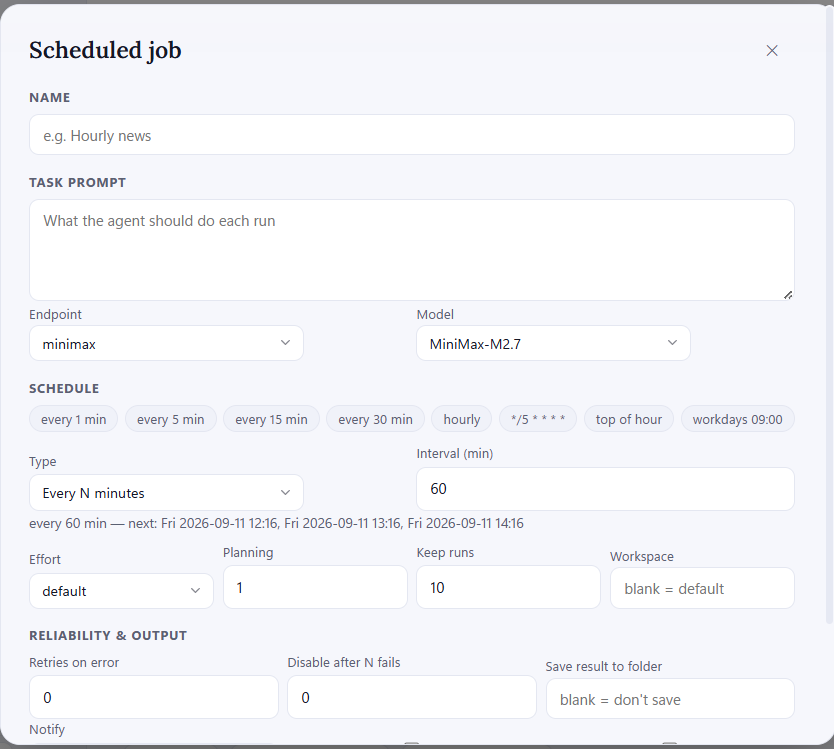
Two ways to create a job:
- From the composer — type
/cron 1h <prompt>(or its alias/loop). The interval isN+m/h/d(5m,1h,1d). The job is created instantly with the current endpoint/model. - The + job form — full control: name, prompt, schedule (interval / hourly / daily / cron expression), effort, how many runs to keep, working folder, retries, disable‑after‑N‑fails, save‑result‑to‑folder, notify, remember‑previous‑result, and catch‑up on missed runs.
The job card shows a status dot, the prompt name, and status chips (schedule · last run · run count · ok/error). Controls:
- Run now — run once immediately.
- Enabled / Disabled — a pill that toggles the schedule on/off; a disabled job dims its whole card.
- ✎ edit and 🗑 delete — icons that appear when you hover the card.
Where runs go. Each job keeps every run in one session (its own working folder). Click the job and its run log fills the chat area, with a header bar at the top showing the same status chips. Runs are separated by Run N · time dividers. The badge on a job counts unread runs. Optionally a job can also save each result to a folder (.md files) and send a notification.
Great for recurring checks, digests, or babysitting a long process.
Next: Shortcuts & tips.
